Set Up Astound on Your Laptop (Cowork)
Plain-language setup for business users: install Astound Bridge on Windows or macOS, sign in with your Astound account, connect your tools, and open Claude Cowork with Astound's skills. About 10 minutes, no commands.
On this page
About 10 minutes. You need admin rights on your computer and your Astound login. When you finish, Claude Cowork will have Astound's skills and tools.
Before you start: check your access. Ask your systemprompt administrator to confirm your account has the right roles. Without them you can sign in, but Cowork will not show the Astound skills and tools you need. Everyone must also connect their tools (a step below) before syncing.
Pick your computer: Windows or Mac.
Windows
-
Turn on Virtual Machine Platform. Required. Claude Cowork needs this Windows feature and it is often switched off. Do it first, because it needs a restart. Press the Windows key, type Turn Windows features on or off and open it. Tick Virtual Machine Platform and select OK. When Windows asks, select Restart now. If the box is already ticked, skip this step. If you cannot change it, ask IT to enable Virtual Machine Platform for you.
-
Download the app. Go to sp-dev.astound.digital and select Download for Windows. The file is called astound-bridge-windows.exe. If Edge says the file "isn't commonly downloaded", open the menu (…) next to the download and select Keep, then Keep anyway.

You can also find the downloads under Account → Connect.
-
Trust the app and run it anyway. The Windows app is not yet signed, so Windows will warn you. This is expected. Right-click the file and choose Run as administrator. A blue "Windows protected your PC" screen appears. Select More info, then Run anyway. When Windows asks "Do you want to allow this app from an unknown publisher to make changes?", select Yes. This approves only this one file. Leave Windows security switched on. Only trust the file you downloaded from sp-dev.astound.digital.
-
Always open it as administrator. Whenever you start Astound Bridge, right-click it and choose Run as administrator, then select Yes. Admin rights let the bridge set up Claude for you. If there is no Yes button, ask IT for a one-off admin approval.
-
Sign in with Astound SSO. Select Sign in. Your browser opens the Astound login page. Use your normal Astound work account, then go back to the app. It shows you as signed in.
-
Connect your tools. Required. Do this before you use or sync anything. In your browser, go to sp-dev.astound.digital/admin/connectors. Each tool you have access to has a card, for example Atlassian, Google Workspace and Astound Salesforce. On each card select Connect and sign in when asked. Keep going until the page says "Everything is connected" and every card shows a green Connected badge.
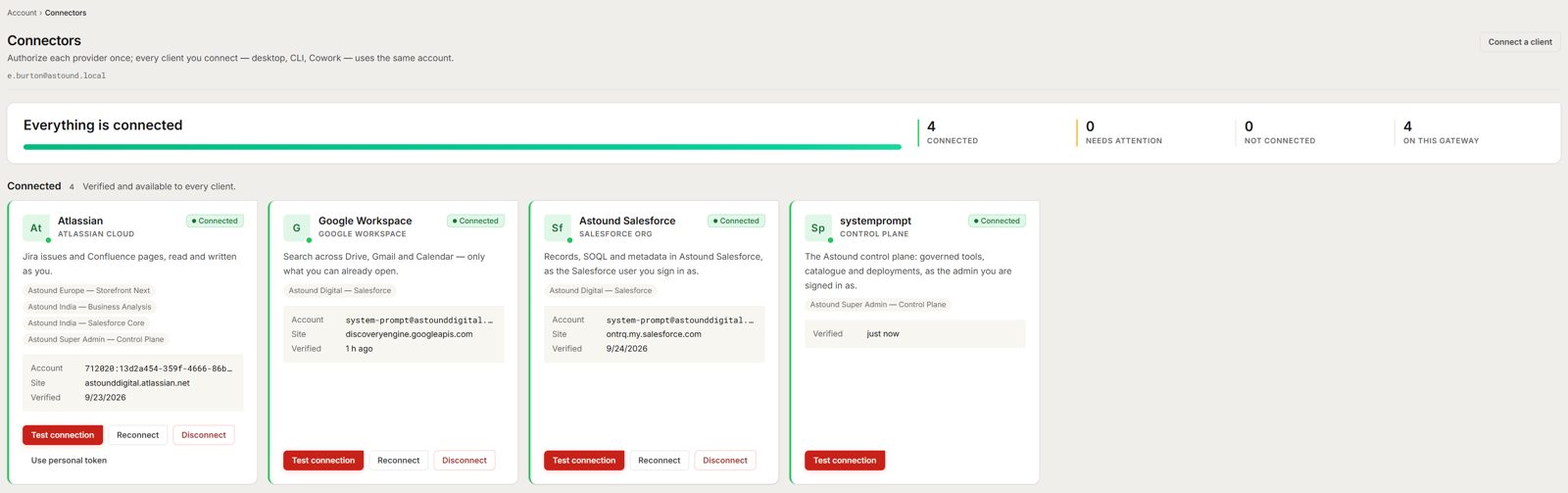
This is what you should see when you are done. You may see fewer cards, depending on your role. If a card says "Needs attention", select Reconnect. Use Test connection to check a tool works.
-
Sync from the Marketplace tab, then open Claude Cowork. Go back to the Astound Bridge app and open the Marketplace tab. Sync from there so the bridge picks up your connected tools and skills. Then fully quit Claude Desktop if it is open, including from the system tray, open it again and go to Cowork. Astound's skills and tools appear, and you are ready.
macOS
-
Download the app. Go to sp-dev.astound.digital and select Download for macOS. The file is called astound-bridge-macos.dmg. It works on all Macs. Always download a fresh copy of the latest version. Older copies do not work with Cowork. If you installed Astound Bridge before, quit it, download it again and replace the old app in Applications when asked.
You can also find the downloads under Account → Connect.
-
Install it. Open the downloaded file and drag Astound Bridge into the Applications folder. Then eject the disk image, which appears in Finder's sidebar.
-
Open it past the security prompt. Open Astound Bridge from Applications. If macOS asks whether you want to open an app downloaded from the internet, select Open. If it says the app "cannot be opened", go to System Settings → Privacy & Security, scroll down, select Open Anyway and enter your Mac password. This approves only this one app. Leave Mac security settings switched on.
-
Approve admin access. The bridge asks for your Mac password so it can set up Claude. Enter it.
-
Sign in with Astound SSO. Select Sign in. Your browser opens the Astound login page. Use your normal Astound work account, then go back to the app. It shows you as signed in.
-
Install the Claude profile by hand. Required. After you sign in, the bridge downloads a settings profile for Claude. macOS does not install it for you. Open System Settings and select General → Device Management (on some Macs it is Privacy & Security → Profiles). Under Downloaded, double-click the Astound / Claude profile, select Install and enter your Mac password. You may see a small "Profile downloaded" notice first. Once installed, the profile moves out of Downloaded. If you cannot find it, sign in to the bridge again to download it again.
-
Connect your tools. Required. Do this before you use or sync anything. In your browser, go to sp-dev.astound.digital/admin/connectors. Each tool you have access to has a card, for example Atlassian, Google Workspace and Astound Salesforce. On each card select Connect and sign in when asked. Keep going until the page says "Everything is connected" and every card shows a green Connected badge.
You may see fewer cards, depending on your role. If a card says "Needs attention", select Reconnect. Use Test connection to check a tool works.
-
Sync from the Marketplace tab, then open Claude Cowork. Go back to the Astound Bridge app and open the Marketplace tab. Sync from there so the bridge picks up your connected tools and skills. Then fully quit Claude Desktop with ⌘Q, open it again and go to Cowork. Astound's skills and tools appear, and you are ready.
Check it worked
Ask Cowork a short question. Then try one Astound skill, for example a read-only Salesforce or Atlassian lookup. If both answer, you are set up. Your administrator can see the request in the gateway's History if you want it confirmed.
If something doesn't look right
- Cowork shows no Astound skills or tools. Check that every card on the Connectors page says Connected, then sync again from the Marketplace tab in Astound Bridge.
- Still missing after that? Quit Claude fully and reopen it. If they are still missing, ask your systemprompt administrator to check your roles.
- Cowork on Mac shows no Astound tools. Make sure you downloaded the latest Astound Bridge today. Then check that the Claude profile is installed (System Settings → General → Device Management).
- The sign-in page won't load. Check that you are on the internet and not on a guest network, then select Sign in again.
- Cowork won't start on Windows. Check that Virtual Machine Platform is turned on (Windows step 1) and that you restarted.
- Windows won't let you run as administrator. Ask IT for a one-off admin approval for Astound Bridge.
- Security software blocks the file completely. Stop and contact IT. Do not turn off antivirus or security settings.
Download only from sp-dev.astound.digital.
Want the technical detail?
- Install the Desktop Bridge: every platform, signing trust, Linux and WSL, command-line checks.
- Connect Claude Code: for developers using Claude Code in a terminal.
- Downloads and checksums: verify a download before you run it.